
Screen not responding to taps, ghost-touching on its own, or dead spots that won't register? Most touch issues trace back to a cable, case or software cause before it's ever the screen itself - run the checks below, then get it looked at in Welland.
Frozen taps, a screen that types on its own, or dead zones that won't respond usually come down to one of a handful of causes. Work through the checklist below, then bring it into our Welland store for a proper diagnostic.
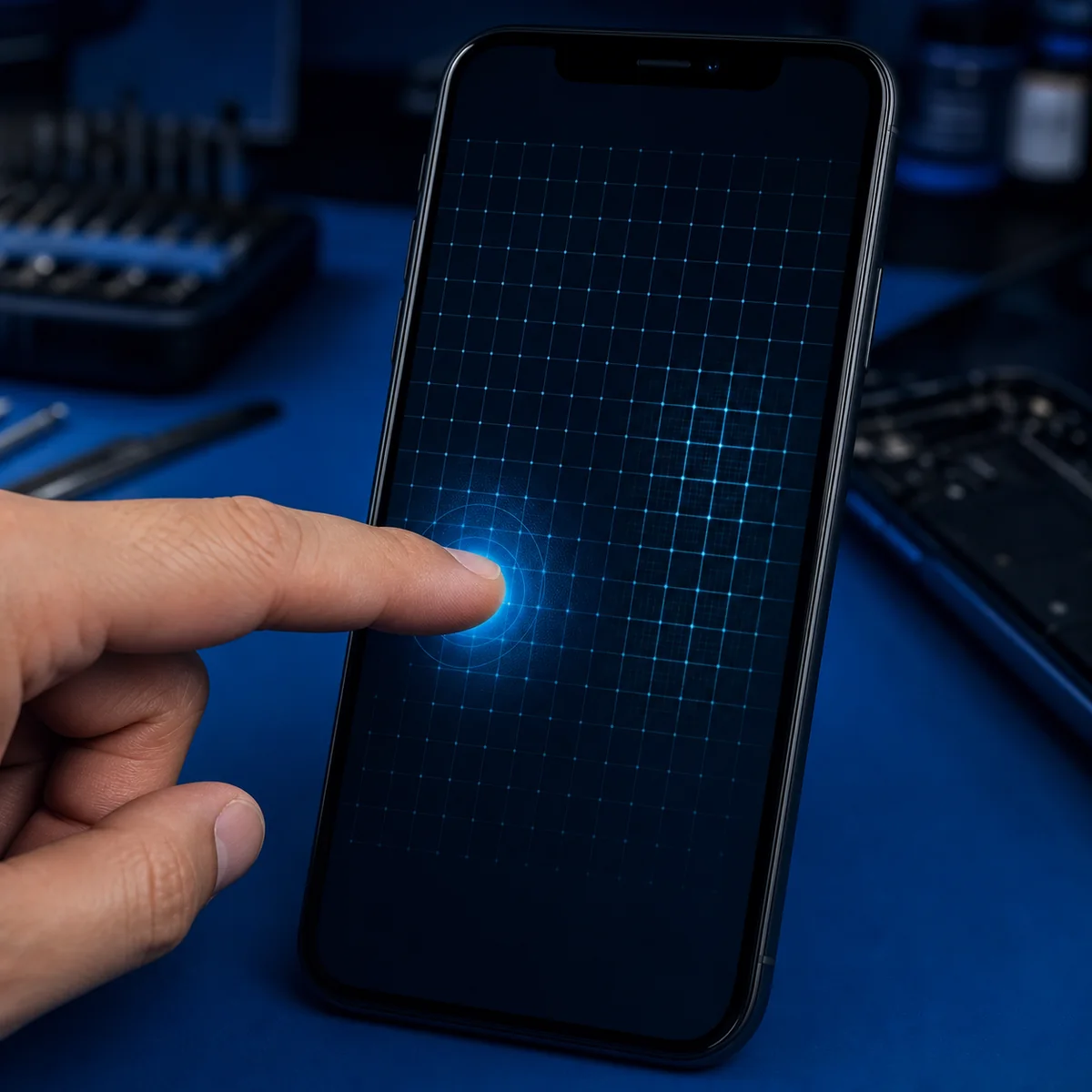 Touch response test
What's happening with your touch screen?
Pick the closest symptom for a quick read on what's likely going on.
Why a touch screen stops responding
Touch input relies on a capacitive digitizer layer just under the glass. Damage, interference or software problems anywhere along that chain can make the screen ignore your finger completely, respond to the wrong spot, or register touches you never made.
Damaged cable or charger
A worn or poorly-made charging cable can interfere with the touch signal while it's plugged in, even without visible damage.
Dirt, oil or moisture
A film of dust, screen-protector residue or a damp screen can confuse the digitizer into missing or misreading touches.
Hairline cracks
Even a crack too small to see can disrupt the capacitive grid under the glass and cause dead zones or ghost touching.
Software glitches
A buggy update or an app running out of control can freeze touch response system-wide until the phone is restarted.
Try these fixes before booking a repair
Guided troubleshooting checklist
0 of 6 completeTroubleshoot by likely cause
- Force restart first - it clears most temporary freezes.
- If the screen works normally in Safe Mode (Android) or after a fresh restart with no apps open, a recently installed app is the likely cause.
- Install pending system updates, since a buggy update can affect touch response.
- Uninstall the most recently added app if the issue started right after installing something new.
- Swap the cable and wall adapter for ones you know are genuine or good quality.
- Try a different outlet or power source entirely.
- Avoid touching the screen while it's actively charging until you've ruled out the cable.
- Check the charging port for lint or debris that could be causing a poor connection.
- Remove the case completely - a tight-fitting case can press on the screen edges and cause false touches.
- Peel off the screen protector and test again; a lifted or bubbled protector is a common cause of dead zones.
- Check for grit trapped between the protector and the glass.
- Replace with a protector confirmed compatible with your exact phone model.
- Inspect the glass under bright light for cracks, even hairline ones near the edges.
- A touch fault that began right after a drop points to digitizer damage, whether or not the glass looks cracked.
- If the phone was exposed to liquid, power it off immediately and avoid charging it until it's been checked.
- Physical digitizer damage needs a screen or digitizer replacement - software fixes won't resolve it.
What a touch screen diagnostic at ThrifTech looks like
Tell us the symptom
Walk in or book ahead and describe what's happening - ghost touching, dead zones, or a total freeze.
Full hardware check
We test the digitizer, charging port, cable and software separately to isolate the actual cause.
Straight-talk quote
You'll know the cost and turnaround before any work starts on your phone.
The repair itself
Screen or digitizer replacement, charging port cleaning, or a software fix - whatever the diagnostic points to.
Tested before it goes home
We check touch response across the full screen before handing your phone back.
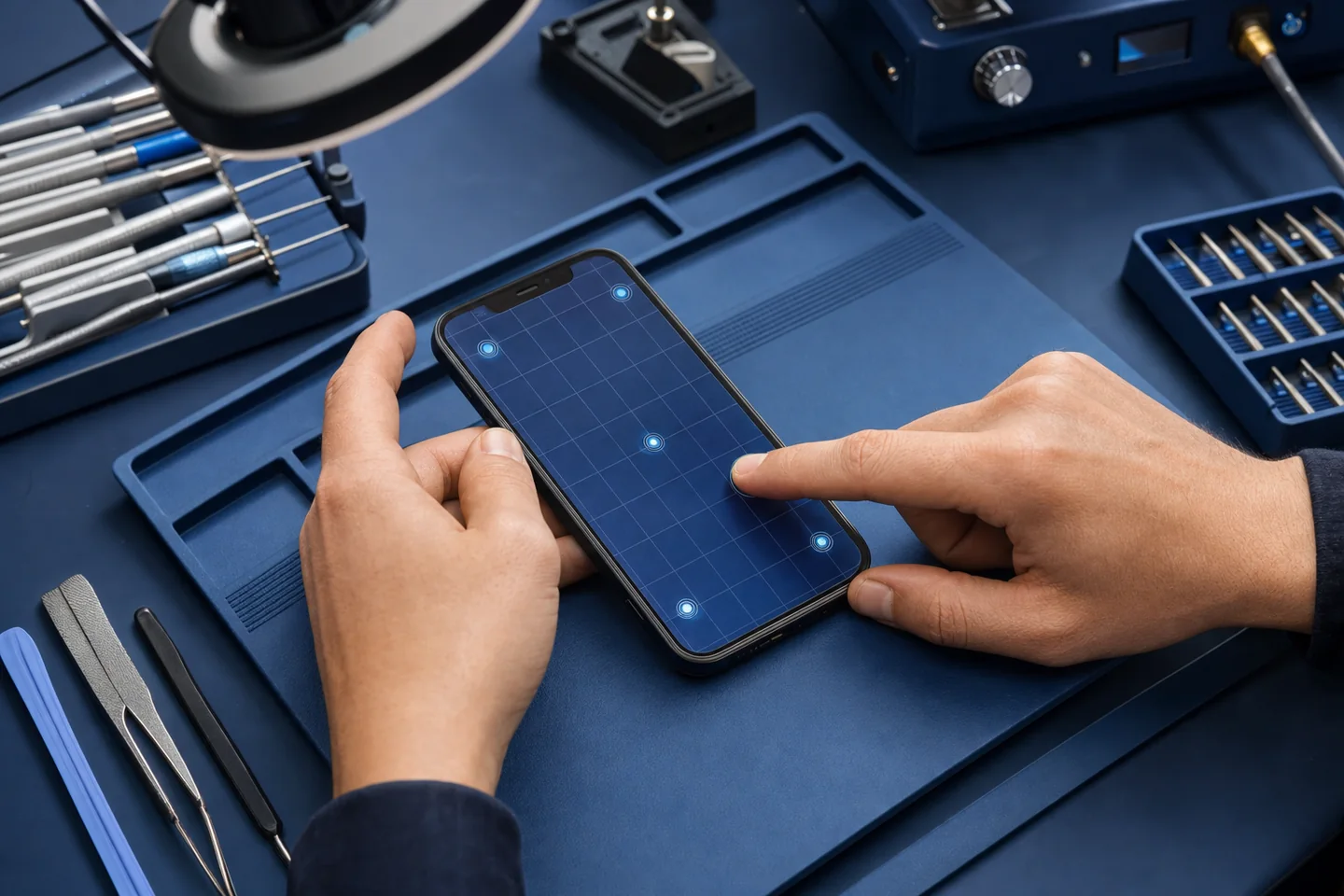
When touch screen repair is likely needed
The issue is probably hardware-related when the checklist above doesn't clear it.
- Touch issue continues after a full restart with the case and protector removed
- A specific area of the screen never responds, no matter what you try
- Screen taps on its own or opens apps with no one touching it
- Problem started right after a drop, even without a visible crack
- Phone was exposed to water or another liquid
- Cracked glass with any touch irregularity nearby
Official troubleshooting guidance
These recommendations reflect current manufacturer support documentation for screen and touch issues.
If the screen isn't working
Touch screen FAQs
Why does my touch screen only fail while charging?
A damaged or low-quality cable and adapter can interfere with the touch signal while connected, even without visible cable damage. Swap the cable, adapter and outlet before assuming the screen itself is at fault.
What causes ghost touching?
Ghost touching - taps registering on their own - is commonly caused by a cracked digitizer, a failing or lifted screen protector, or moisture trapped under the glass.
Can a screen protector cause touch problems?
Yes. A bubbled, lifted, or incompatible protector can create dead zones or false touches. Peel it off as a test before booking a repair.
My phone got wet - what should I do?
Power it off immediately and avoid charging it until it's been checked. Charging a wet device risks further internal damage.
Does a cracked screen always mean a digitizer replacement?
Not always, but a crack combined with any touch irregularity - dead zones, ghost touches, or an unresponsive area - usually means the digitizer layer is affected and needs replacing.
When should I bring my phone in instead of troubleshooting at home?
If the checklist on this page doesn't resolve it, or the issue started after a drop or liquid exposure, a hands-on diagnostic is the safer next step.
Touch screen still not working?
Get a no-obligation quote or bring it in for an honest diagnostic. Walk-ins are welcome at our Welland store.